SecurityTool Removal
Full article808 words · extracted from securelist.com · click to collapse


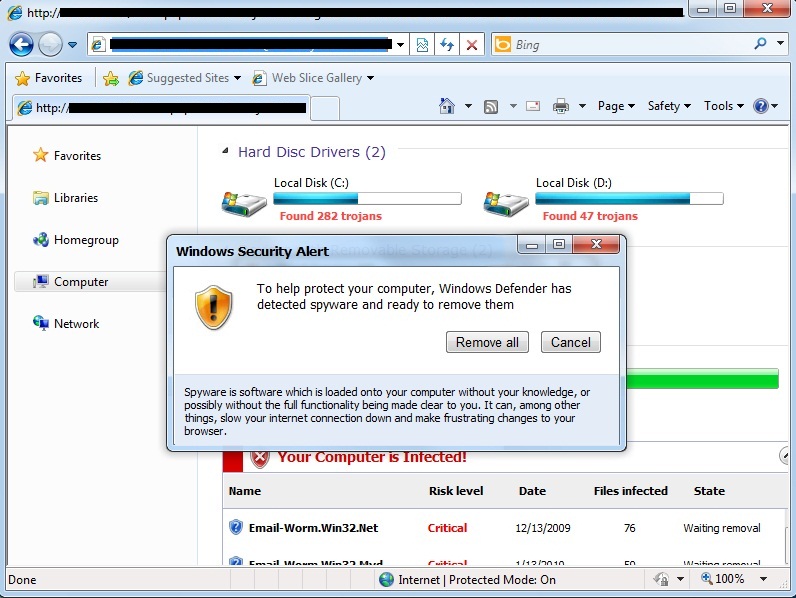
FakeAv schemes are designed to trick you into running what looks like legitimate security software on a system and providing credit card and personal identity details. Fraudulent software like this is delivered to a system with drive-by exploits which require no interaction or delivered with social engineering tricks that con you into willingly running this malware on your system. See the screenshot below from a Windows 7 system browsing one of the FakeAv distribution sites. If you were visiting this web page, you might think that malware really is all over your system.
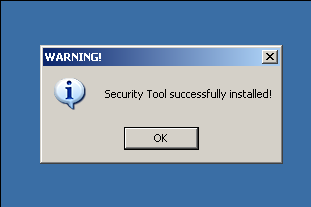
If you are duped into clicking on a button to install software from this site, you will be prompted to download “inst.exe”. If you run the file, the first images that you will see warns of a successful Security Tool install. In the background, “inst.exe” is copying out a batch file and a randomly named exe to %appdata% and executing them. The batch file deletes the original inst.exe file. After this, your system will display a series of fraudulent messages claiming that your system is infested with malware.
At this point, it is relatively easy to manually clean up the infection or install Kav to clean up the infection (Kav detects and deletes the files with a strong heuristic). If you are doing a manual cleanup, you only need to follow a few steps:
-
Open task manager and kill the FakeAv process, which will be listed with an image file named “726761861.exe” or “341875345.exe”. This file name changes on every installation, but the name will be a randomly generated sequence of 4 to 10 digits like 60003297, 1270232, 027305, etc. The barrage of pop ups will stop at this point.
-
Delete the dropped FakeAv exe from disk.
- On Windows XP, navigate to %appdata%, by clicking the start menu and entering %appdata% into the “Run…” field.
- On Windows 7, navigate to %localappdata%, by clicking the start menu and entering %localappdata% into the “Search programs and files” field.
- Delete the randomly named FakeAv executable (looks like “726761861.exe”) located in this directory.
-
Open regedit and delete the FakeAv autorun entry
- On Windows XP, navigate to HKEY_CURRENT_USERSoftwareMicrosoftWindowsCurrentVersionRunOnce. Delete the value and its data that looks like Value 341875345 Data “C:Documents and SettingsUserLocal SettingsApplication Data341875345.exe” 0 41
- On Windows 7, naviate to HKEY_CURRENT_USERSoftwareMicrosoftWindowsCurrentVersionRunOnce. Delete the value and its data that looks like Value 726761861 Data “C:UsersUserAppDataLocal3837888.exe” 0 33
- Sometimes, the FakeAv is delivered alongside other, more severe malware. Install an AV product and run a full scan.
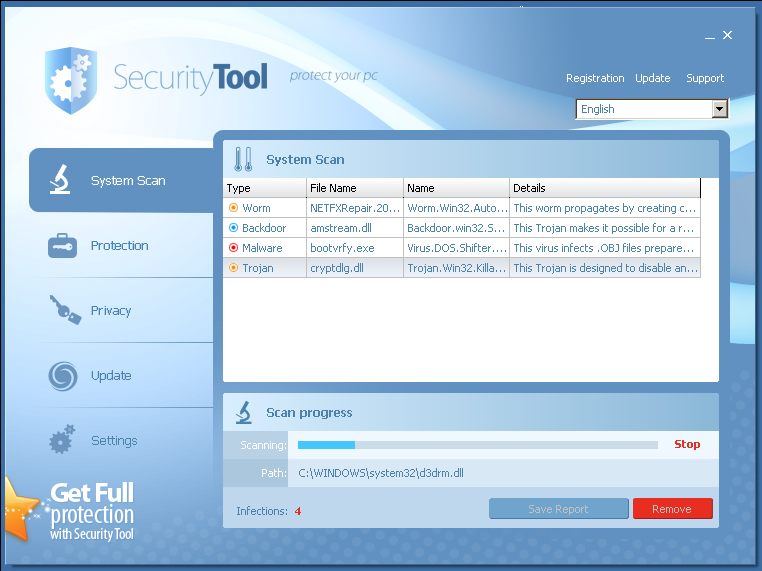
That’s pretty easy. But let’s just say that you haven’t caught and removed the infection by this point. You reboot your machine, or the malware forces a reboot. When the system comes up, removal can be trickier. When your system boots up and you log in, several seconds later, you will see a phony scan of your system.
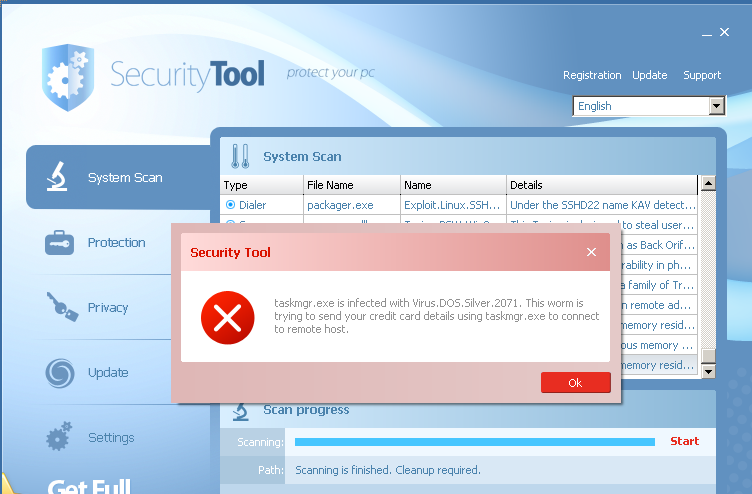
From this point on, any application that you attempt to start is terminated by the malware. When you try to run anything, the malware kills it and displays a popup, claiming that the application is infected with Virus.ABC and urging you to provide your credit card details to clean up, instead of remaining “unprotected”. Below is a screenshot of what happens after you try to open task manager to kill the FakeAv process. Instead, task manager is terminated by the FakeAv and the popup displayed.
When the malware is allowed to run for more than a few minutes, remediation urgency is cranked up with a FakeAv-provided phony BSOD. The information presented in the text is consistently comic in its construction, as in other FakeAv pages “Check to make sure any new hardware of software is properly installed”
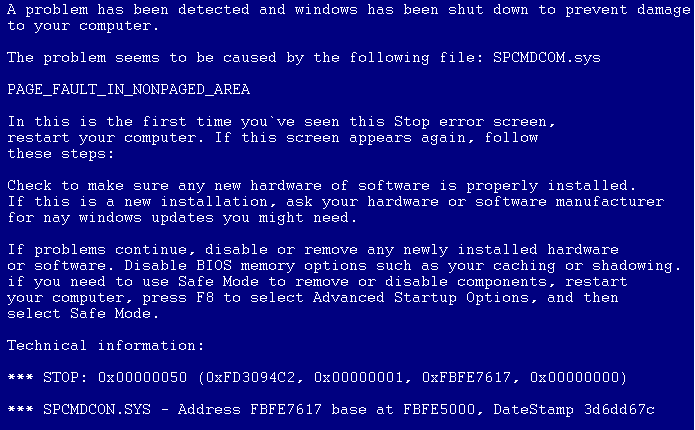
At this point, your best option is to perform a cold reboot (hit the power button). When the system loads, you need to quickly start the Task Manager, in the few seconds before the FakeAv exe starts. You can then follow the steps outlined above for killing and removing the FakeAv infection.
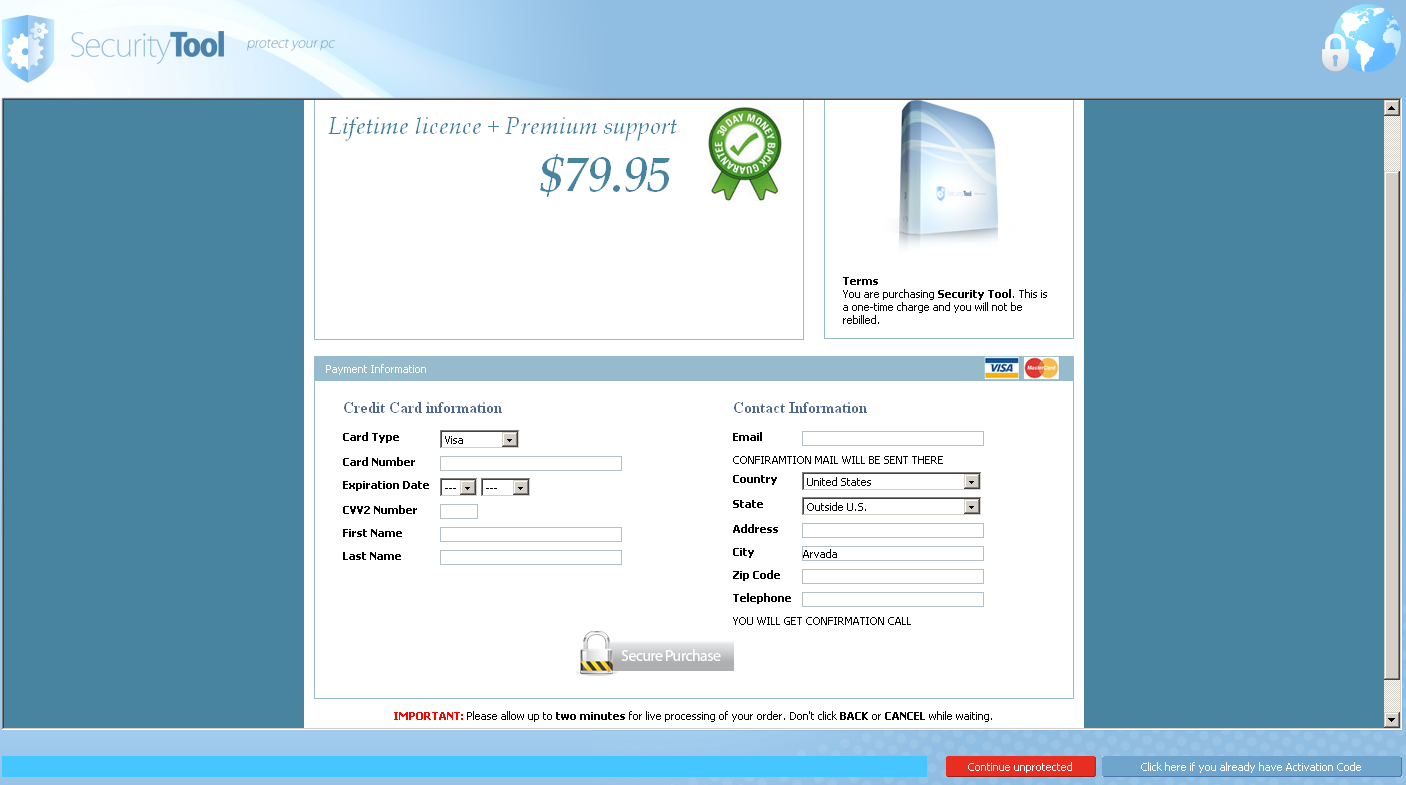
If you were duped into entering your credit card details into the dialog box looking like the screenshot below, contacting the card issuer at this point would be a good start to report the situation.
Latest Webinars
Reports
Kaspersky researchers have discovered new Mirage Kitten attacks using previously undocumented malware families: NodeRabbit in Node.js and PollCat in JavaScript.
Our experts discovered a new CoolClient backdoor variant with a kernel-mode rootkit driver that hides malicious processes, files, and network connections from security tools and threat analysts.
Kaspersky experts break down a new Armored Likho campaign that poses as a fundraising efforts and delivers a new Still Toolkit aimed at stealing Telegram data and eavesdropping on victims.
Kaspersky researchers reveal previously undocumented malware attributed to Mirage Kitten (UNC1549, Smoke Sandstorm, Nimbus Manticore): NightLedger backdoor, ArcBridge, and BridgeHead tunneling tools.
Text extracted automatically; images, tables and formatting may be missing. Original: https://securelist.com/securitytool-removal-an-it-handymans-fakeav-annoyance/29756/